Aranova Couriers WooCommerce Plugin
Aranova Couriers WooCommerce Plugin Installation & Setup Guide
The Aranova Couriers WooCommerce plugin connects your online store to the Aranova Platform for live checkout rates, courier bookings, waybill downloads, customer shipment emails, manual shipping, and public parcel tracking.
Step 1: Install and Activate the Plugin
Install the plugin from your WordPress dashboard.
- Download the plugin ZIP file from here.
- In WordPress, go to Plugins > Add New.
- Click Upload Plugin and choose the downloaded ZIP file.
- Click Install Now, then click Activate.
- Make sure WooCommerce is installed and active before configuring shipping.
Step 2: Add Your API Key and Shipping Settings
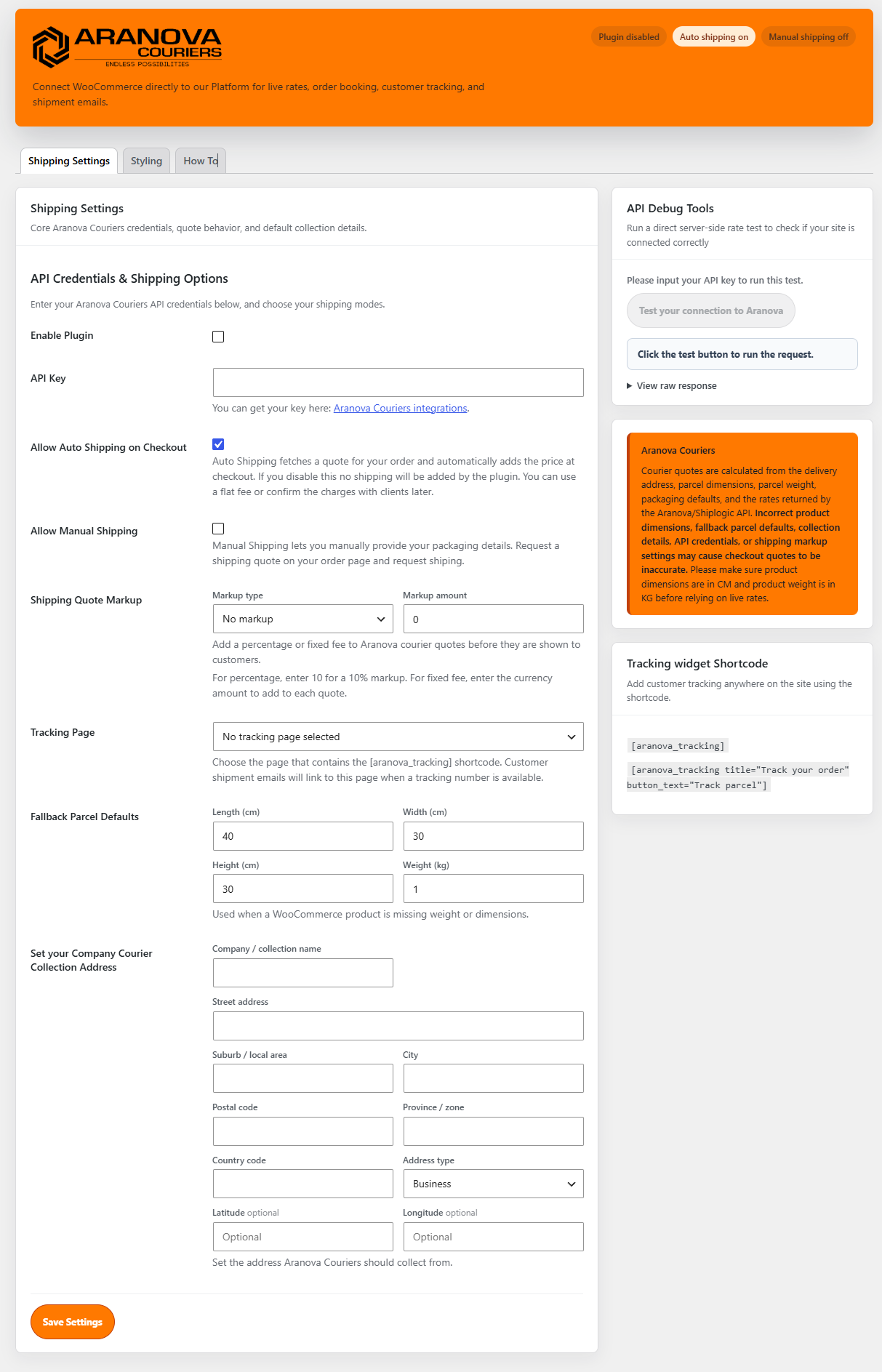
After activation, open the new Aranova Couriers menu in the WordPress dashboard and complete the shipping settings.
- Enable Aranova Couriers.
- Enter your Aranova Couriers API Key.
- Choose whether to allow Auto Shipping at checkout.
- Choose whether to allow Manual Shipping from the WooCommerce order screen.
- Set your company courier collection address.
- Save your settings.
You can also choose a tracking page, add a percentage or fixed markup to courier quotes, and set fallback parcel dimensions for products that do not yet have weight or dimensions saved.
Step 3: Configure Fallback Parcels and Product Dimensions
For the most accurate shipping quotes, add weight and dimensions to your WooCommerce products.
- Weight in kilograms.
- Length in centimetres.
- Width in centimetres.
- Height in centimetres.
If a product is missing shipping data, the plugin uses fallback parcel values from the Aranova Couriers settings. The default fallback values are 40 cm length, 30 cm width, 30 cm height, and 1 kg weight.
Step 4: Show Live Aranova Rates at Checkout
When Auto Shipping is enabled, the plugin sends the customer delivery address and parcel details to the Aranova Platform during checkout. The returned courier services are displayed as WooCommerce shipping methods.
- Add Aranova Couriers to the relevant WooCommerce shipping zone if required by your store setup.
- Add a product to the cart and go to checkout.
- Enter a complete South African delivery address.
- Confirm that Aranova Couriers service options and prices appear under shipping.
If rates do not appear, check that the plugin is enabled, the API key is saved, Auto Shipping is enabled, and the checkout address is complete.
Step 5: Book a Courier From a WooCommerce Order
After a customer places an order with an Aranova Couriers shipping option, the WooCommerce order screen can book the courier delivery.
- Go to WooCommerce > Orders.
- Open the order that used an Aranova Couriers shipping rate.
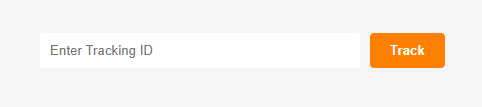
- Click Book Aranova Courier Delivery.
- When booking succeeds, the tracking reference is saved on the order.
- The customer receives a shipment booking email with the tracking number and tracking page link when a tracking page is selected.
Once a shipment has been booked, the order screen can also show actions to download the Aranova waybill or cancel the courier booking.
Step 6: Add Customer Tracking to Your Website (Optional)
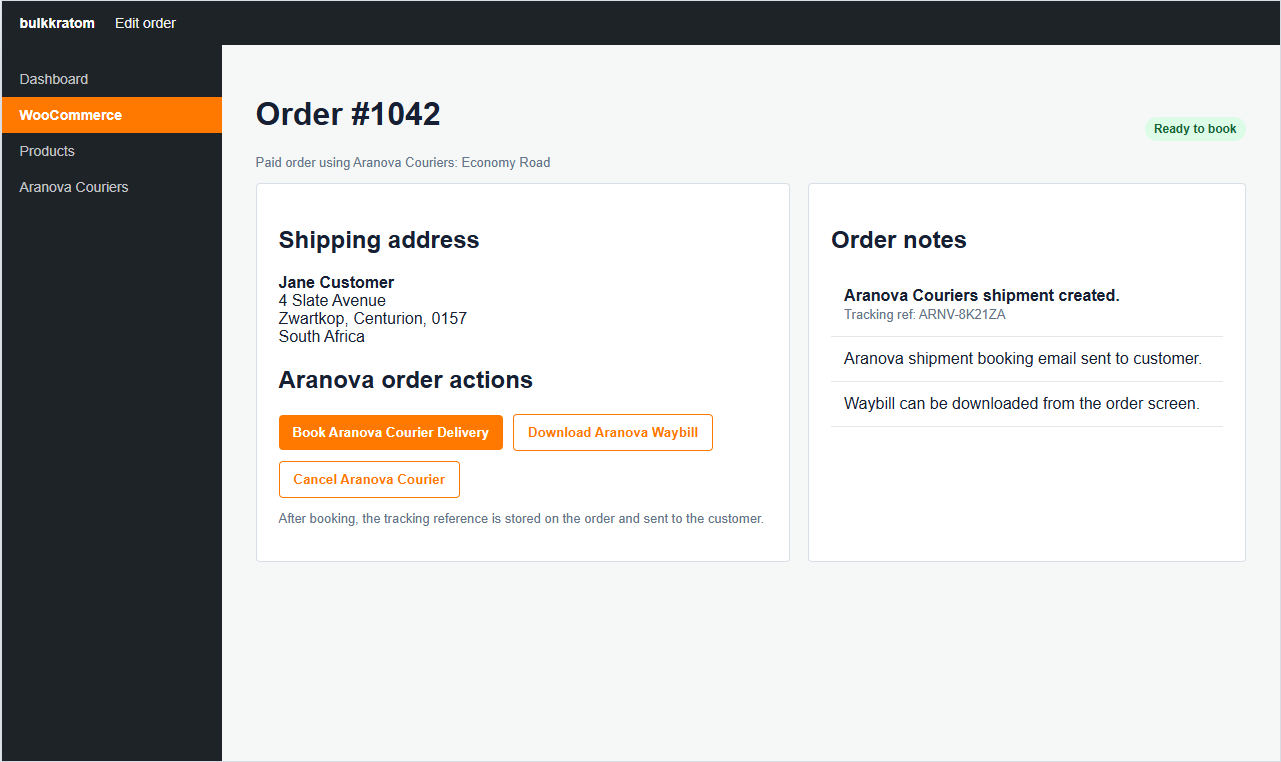
The plugin includes a public tracking shortcode that can be placed on any WordPress page.
"aranova_tracking"
You can also customise the title and button text:
aranova_tracking title="Track your order" button_text="Track parcel"
- Create or edit a WordPress page for parcel tracking.
- Add the aranova_tracking shortcode.
- Go to Aranova Couriers > Shipping Settings.
- Select that page under Tracking Page so customer shipment emails link to it.
The tracking page shows tracking events, current status, waybill number, parcel references, service level, hub information, delivery contact details, and expected delivery details where available.
Step 7: Style Tracking and Test the API (Optional)
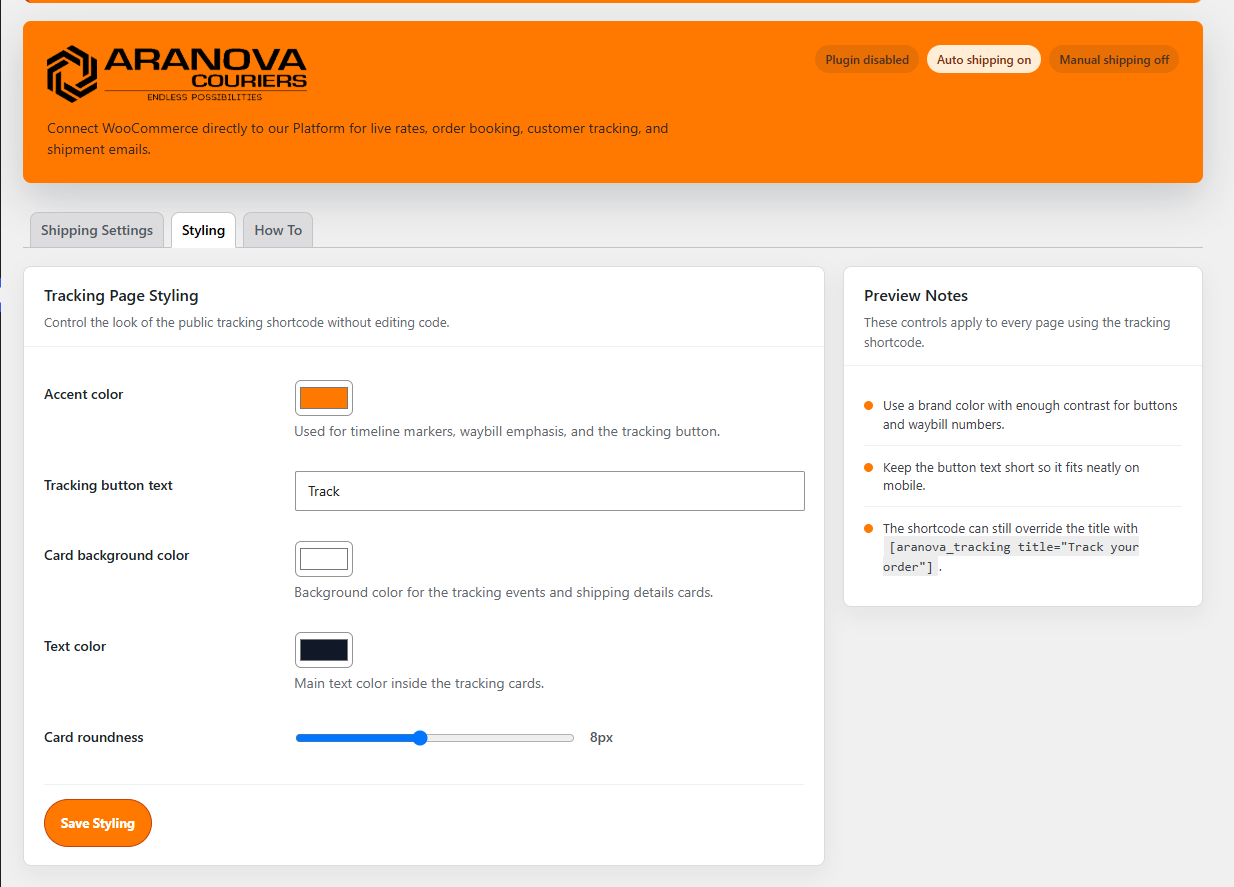
The Styling tab lets you adjust the public tracking shortcode without editing code.
- Accent colour.
- Tracking button text.
- Tracking card background colour.
- Tracking card text colour.
- Tracking card roundness.
The admin page also includes an API test button for rates. Use it to confirm the API key works, inspect the request payload, and view the raw response returned by the Aranova Platform.
What the Plugin Handles
- Live Aranova courier rates at WooCommerce checkout.
- Fallback parcel dimensions when product shipping data is incomplete.
- Automatic and manual courier booking from WooCommerce orders.
- Waybill download after successful shipment booking.
- Courier booking cancellation where supported.
- Customer shipment emails with tracking numbers.
- Public parcel tracking with the “aranova_tracking” shortcode.
- WooCommerce order notes and logs for booking and debugging.
Support
If you need help with your API key, account setup, or courier services, contact Aranova Couriers support.
Phone: 0861 995 048
Email: support@aranovacouriers.co.za